A 4:5 border that does not crop your photo
Turn a 3:2 landscape frame into a vertical post with most tools and they crop it: a strip comes out of the middle and the sides are gone.
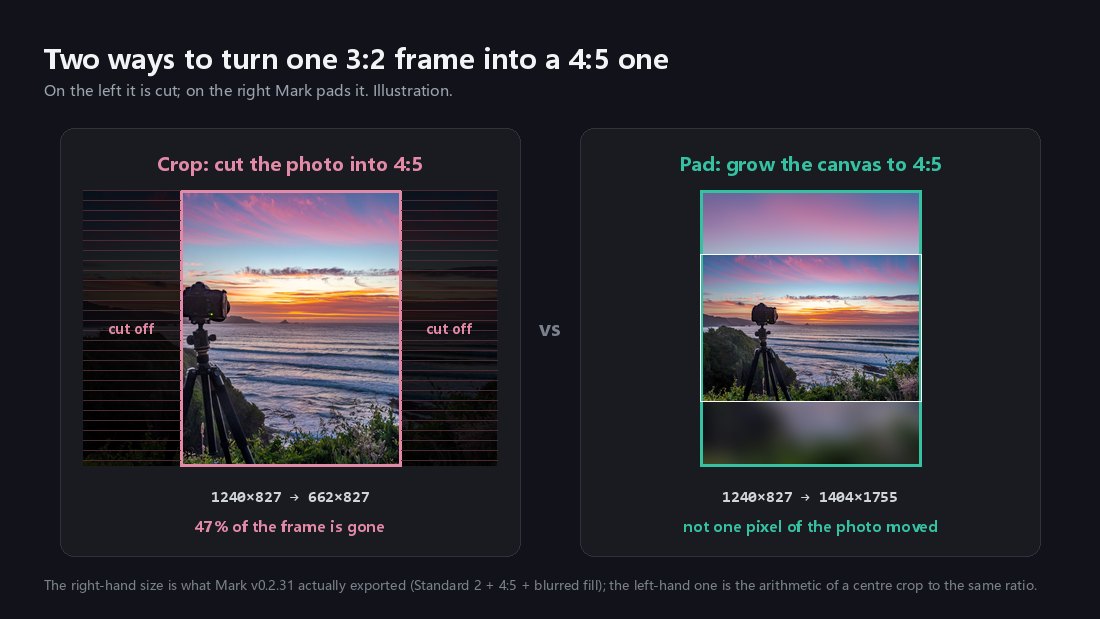
Mark goes the other way: it grows the canvas to the target ratio and fills the new space with a blurred copy of the photo or with black, leaving the original untouched.
Open Mark, try a photo freeFree, no account, nothing uploaded.
1. What this covers
One thing: turning a landscape frame into a vertical one without losing any of the picture. Styles and margin widths are in choosing a watermark style; long-edge pixels and colour space in export settings for social platforms; how the strip is read from EXIF in how camera settings watermarks work.
Clear this up first: the chip labelled for Xiaohongshu is 3:4, and the 4:5 chip is labelled for Instagram (the Chinese interface prints 小红书 under 3:4 and IG竖 under 4:5). Neither crops; one is just taller than the other. For Xiaohongshu, 3:4 is the safe bet. This page shows both.
Ratio fitting is off by default: the canvas only extends when you choose a ratio.
2. Three steps
- Step one: drop the photo in
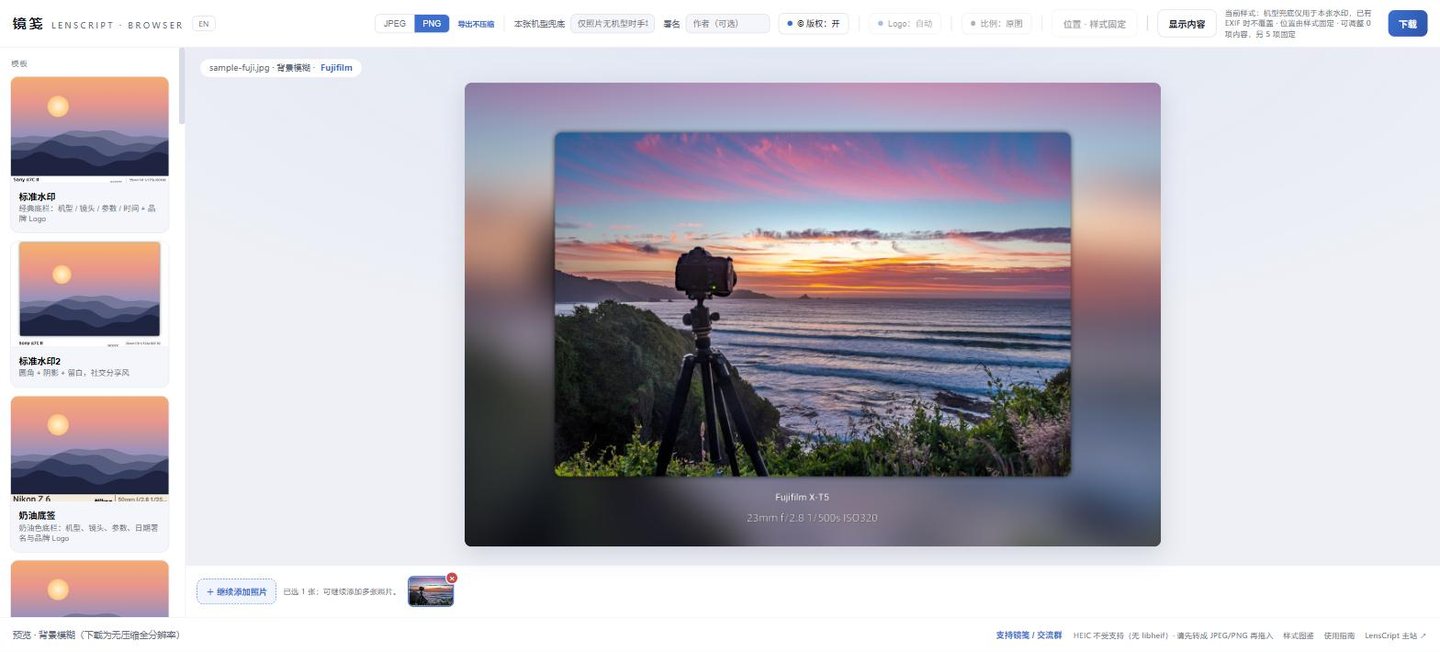
Right after the photo lands, the ratio button reads "Original" and the frame is still the camera’s 3:2. Open mark.lenscript.cn and drop the photo into the dashed box, or click the box to pick a file. Body, lens, aperture, shutter and ISO are read from EXIF. The browser version takes JPEG, PNG and camera RAW; HEIC is not supported (no libheif in the browser), so convert an iPhone HEIC to JPEG first.
- Step two: pick the ratio, then the fill
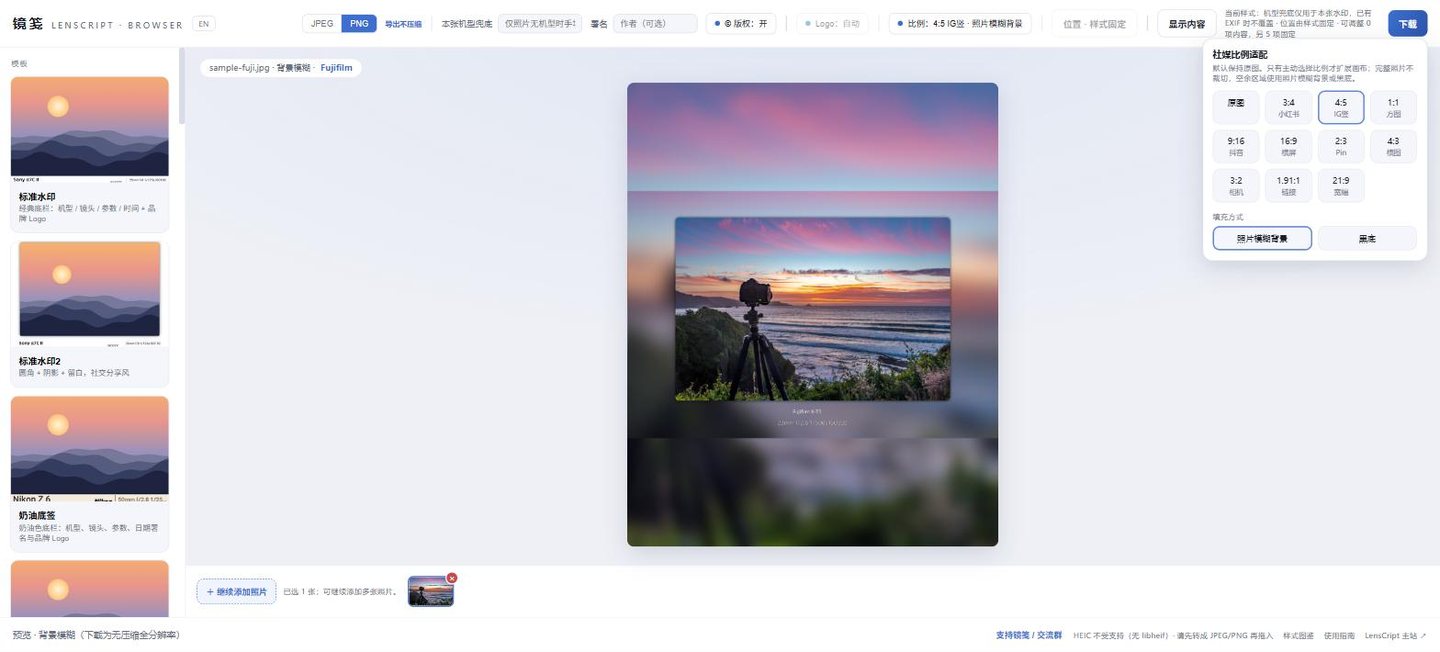
Select 4:5 and the canvas gets taller at once, the photo and strip centred, the gap filled with a blurred copy of the photo. Click Ratio in the top bar. The panel, Social media ratios, has eleven chips: Original, 3:4 (Xiaohongshu), 4:5 (Instagram), 1:1 (square), 9:16 (TikTok), 16:9 (wide), 2:3 (Pin), 4:3 (classic), 3:2 (camera), 1.91:1 (link) and 21:9 (cinema). The platform names come from the interface itself.
The Fill row underneath has two options: blurred photo background (the default) and black. White is not offered; a landscape frame in a portrait ratio leaves a big empty area, and plain white there reads as a dead hole. If you want a white border, switch to a template with its own margins, such as Polaroid, Black gallery or Minimal. That margin belongs to the style, separate from ratio fitting.
- Step three: pick a format and download
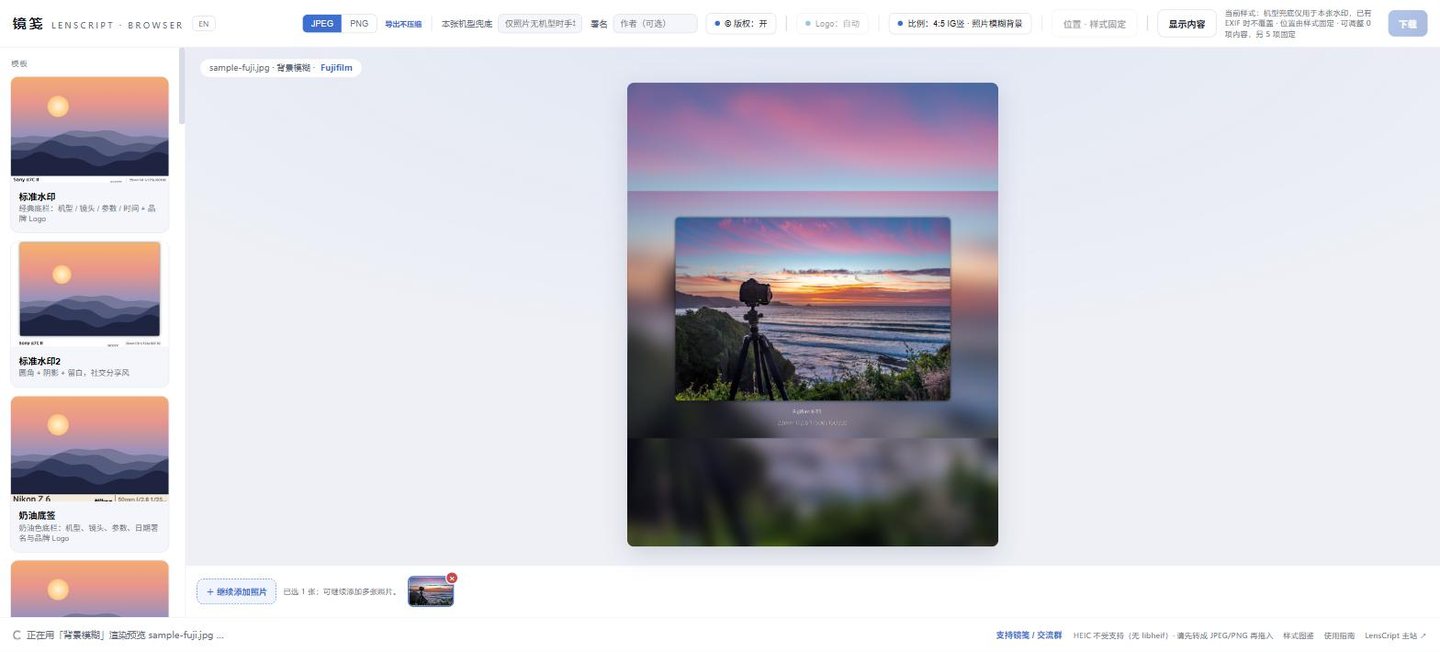
JPEG or PNG at the top left, Download at the top right. The export is re-rendered at full resolution, not saved from the preview. JPEG is fixed at quality 100 with no chroma subsampling (4:4:4); PNG is lossless across the photo area. Export re-reads the original at full resolution. The file is named
<original name>_<template name>.jpg. There is no long-edge or output-size setting, so resize the original elsewhere if you need a smaller file. It all runs in your browser; the photo is never uploaded.
3. Before and after


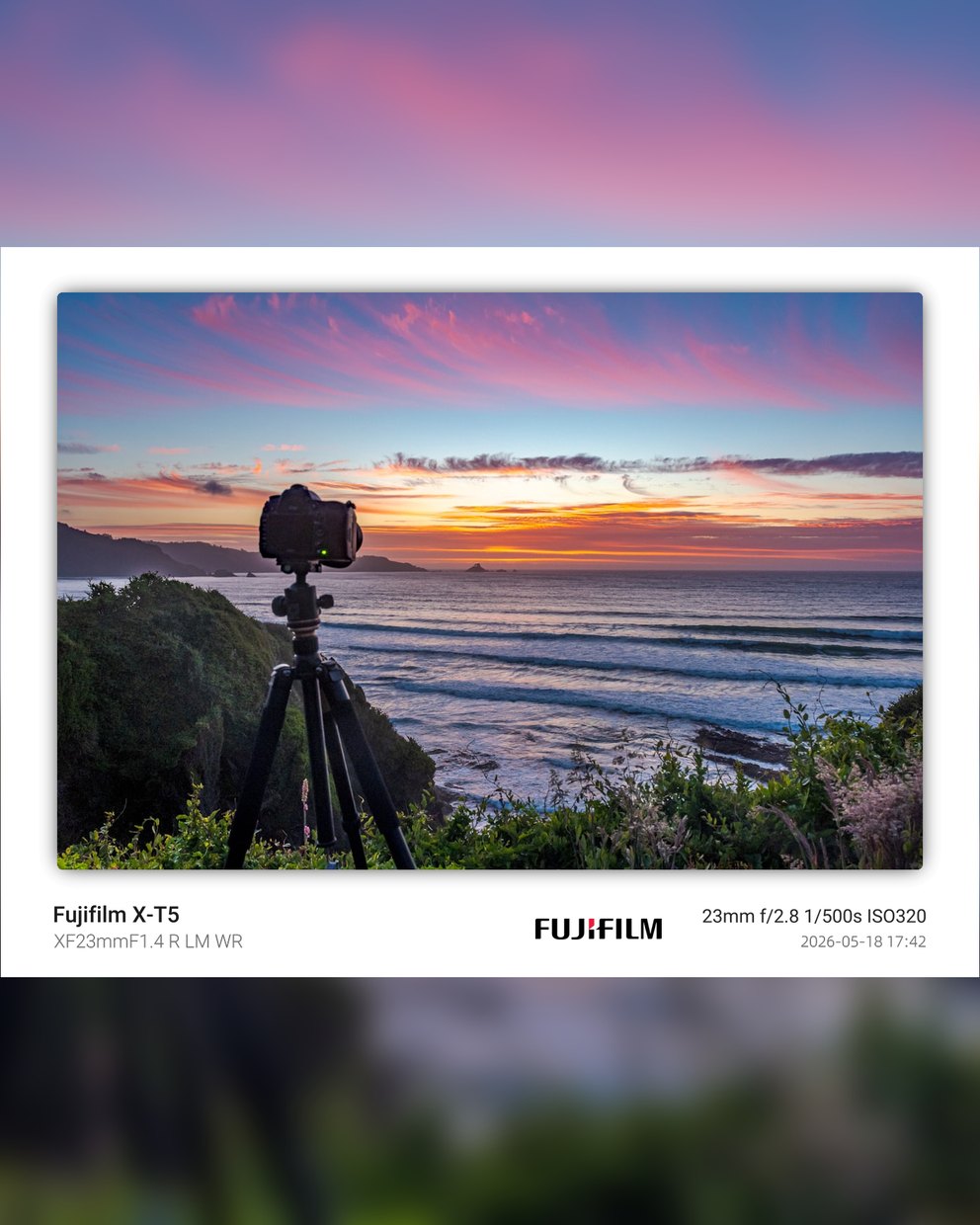
The width went from 1402 to 1404 (a multiple of four) and the height from 1046 to 1755. The canvas only grows outward.
That is measured, not eyeballed. Slide the 1402×1046 result down the 1404×1755 canvas row by row and the best match sits at a vertical offset of 354 pixels, which is (1755−1046)÷2, dead centre. The mean pixel difference there is 0.17 out of 255, the noise floor of a JPEG re-encode. The earlier result was pasted in as it was, neither cropped nor rescaled.
3:4 works the same way. Here is one finished frame exported both ways:


If the blur is not the mood you want, black is one click away:

Drop in one of your landscape frames and tap 4:5 under Ratio. The canvas grows; not one pixel of the photo is cut.
Open Mark in the browser4. Where it goes wrong
| What you see | Why | What to do |
|---|---|---|
| You pick a ratio and the photo gets a border instead of filling the canvas | By design: ratio fitting only extends the canvas and never crops | That is the point of it. If you do not want the extra space, go back to Original |
| You want a white border and cannot find one under Fill | The interface offers only a blurred photo background and black; white is not available | Use a template with its own margins: Polaroid, Black gallery or Minimal |
| A 24-megapixel original with the blurred fill takes forever and looks frozen | The blur runs across the whole enlarged canvas at full resolution, which is slow | Switch to black, or resize the original to a 2000–3000px long edge first. On the v0.2.31 command-line build on an i7-12700H, one 24MP frame dropped from 106.4 s to 3.9 s |
| An iPhone photo will not load and the footer says HEIC is unsupported | The browser build has no libheif, so HEIC cannot be decoded | Convert to JPEG first: Settings → Camera → Formats → Most Compatible, or export a JPEG copy |
| The exported file is far larger than expected | Export is fixed at full original resolution and JPEG quality 100, with no size or quality control | Resize the original to the long edge you need in another tool, then bring it into Mark |
5. Next
6. FAQ
Does 4:5 crop my photo?
No. Ratio fitting grows the canvas: it works out the smallest canvas at the target ratio that fits the whole finished frame, centres the frame and fills the rest with a blurred copy of the photo or black. Measured on a real export, a 1402×1046 result became 1404×1755 at 4:5, and the mean pixel difference between the frame and its copy in the new canvas was 0.17 out of 255, the noise floor of a JPEG re-encode. Nothing was cropped or rescaled.
For Xiaohongshu, should I pick 3:4 or 4:5?
Go by the interface: 3:4 is the chip labelled for Xiaohongshu, 4:5 the one labelled for Instagram portrait. For Xiaohongshu pick 3:4; 4:5 is a little shorter and is the usual Instagram shape. Neither crops, so export one of each and keep the one you like.
Can I have a white border instead of a blur or black?
Not through Fill, which offers only a blurred photo background and black. Change template instead: Polaroid, Black gallery and Minimal carry their own margins, so the border comes from the style. The two are independent and can be combined.