Fujifilm, Sony, Canon and Nikon settings watermarks
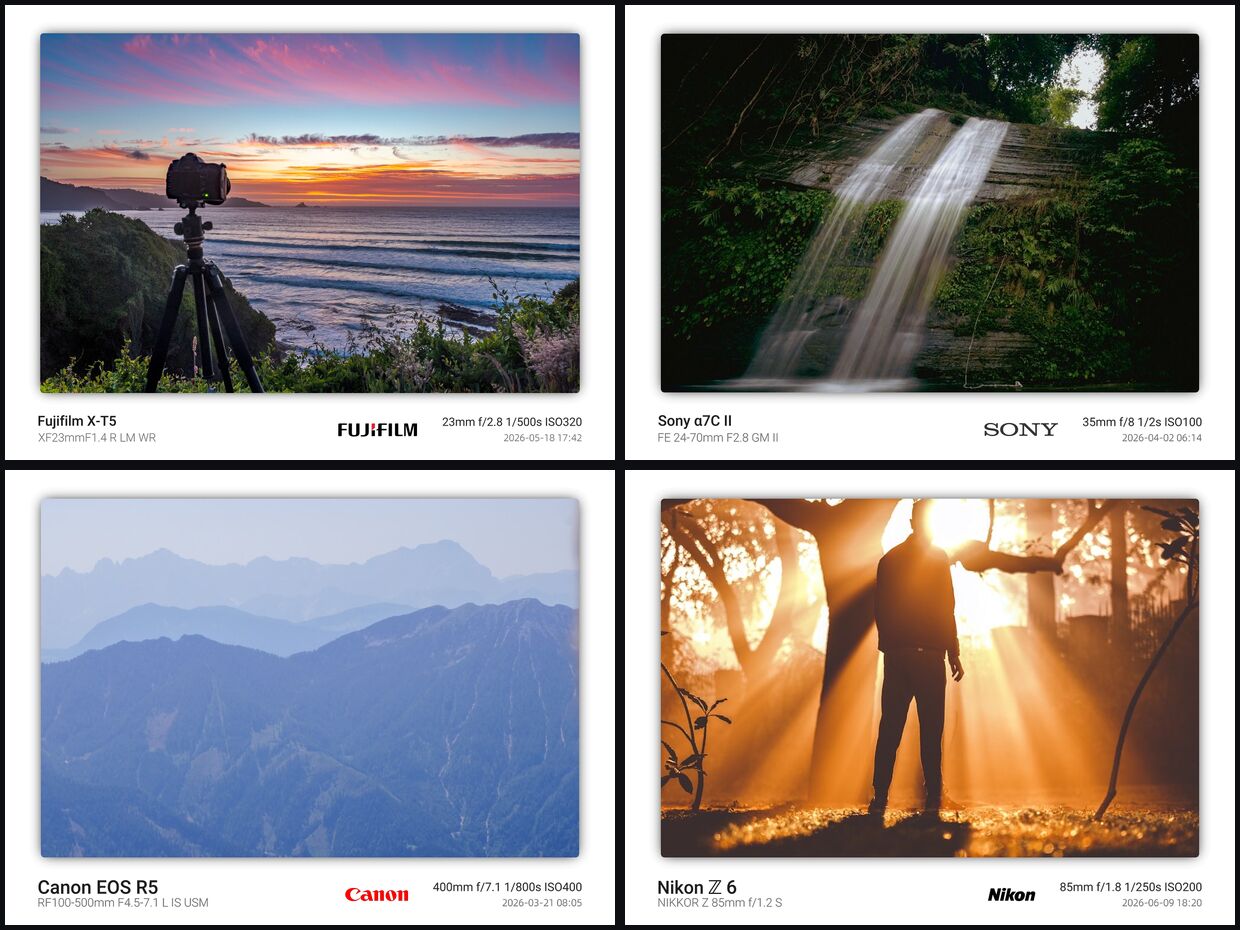
A settings strip looks the same on all four brands until you see what each camera writes into EXIF: a model code that rarely matches the name on the box.
Sony stores the α7C II as ILCE-7CM2, Fujifilm leaves its own name out, and Nikon changed the spacing in its model names in late 2024, so here they are one brand at a time.
Open Mark, try a photo freeFree, no account, nothing uploaded.
1. What this covers
How one strip comes out across four brands: model codes, brand marks and spelling details.
The full walkthrough is in the online generator guide, picking a look in choosing a watermark style, and phone files in the iPhone guide.
Brand marks are matched from EXIF across 29 camera and phone brands, checking Model, then the prettified Model, then Make, with sub-brands beating parent brands. When nothing matches, no logo is drawn and no placeholder goes in. Co-branded marks (Xiaomi × Leica, Huawei × Leica, vivo × Zeiss, OnePlus × Hasselblad, OPPO × Hasselblad) are manual only.
2. Three steps
- Step one: drop in a JPEG straight from the camera
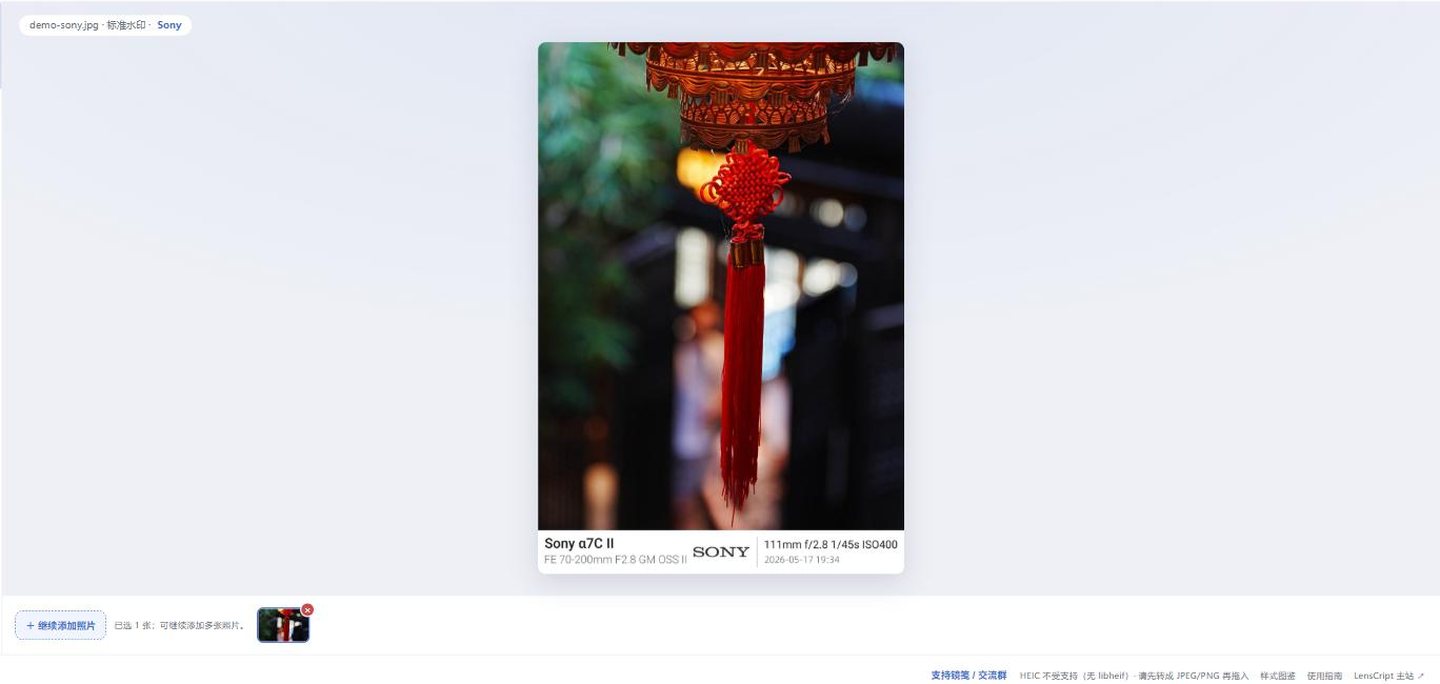
Drop it in and ILCE-7CM2 from the EXIF reads as Sony α7C II, with the SONY wordmark matched automatically. A camera JPEG is the easy path. RAW works too, but only its embedded preview is used, so export a JPEG first if you need full resolution.
- Step two: check the brand mark, set it by hand if wrong
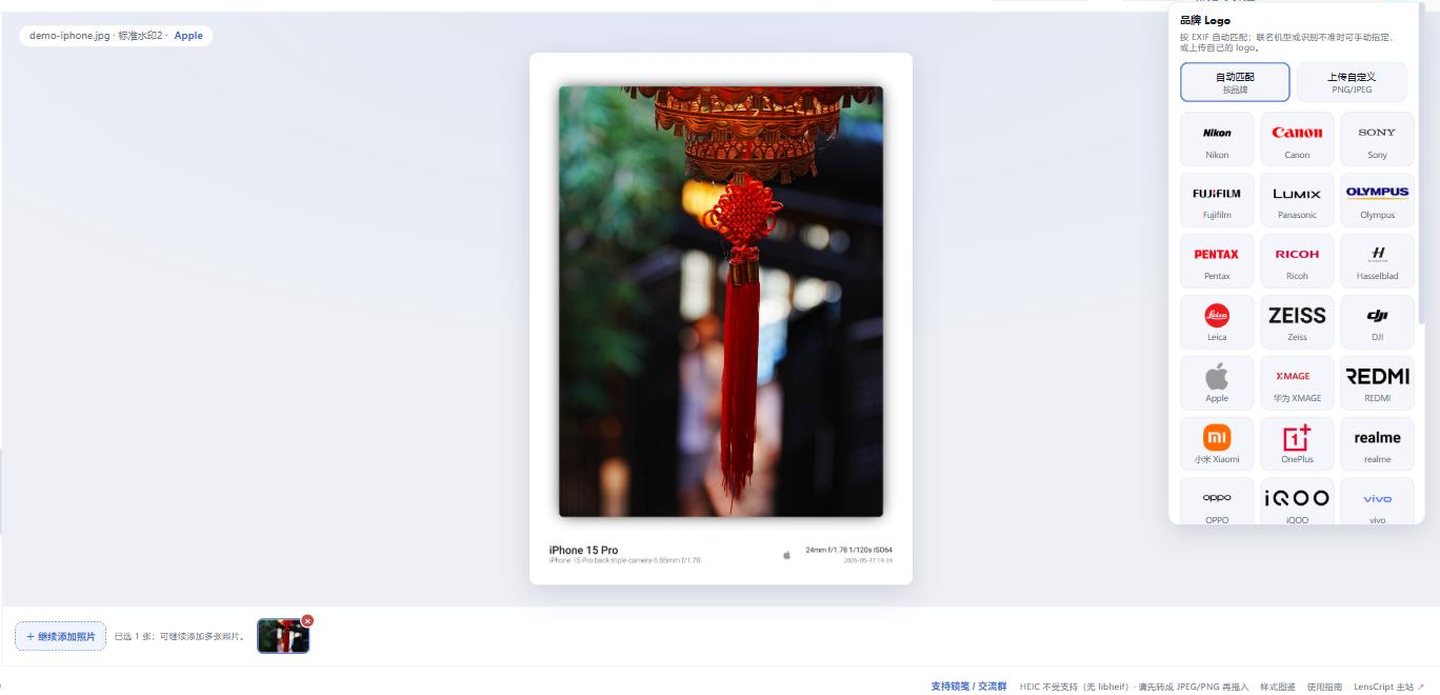
The brand logo panel, opened from the top bar: pick a brand by hand or upload your own PNG. If the file has no body name at all, you can type one into the per-photo fallback here; a file that carries its own model ignores it. The body fallback and the brand mark are separate settings: typing a body does not fix the logo, so set both.
- Step three: export
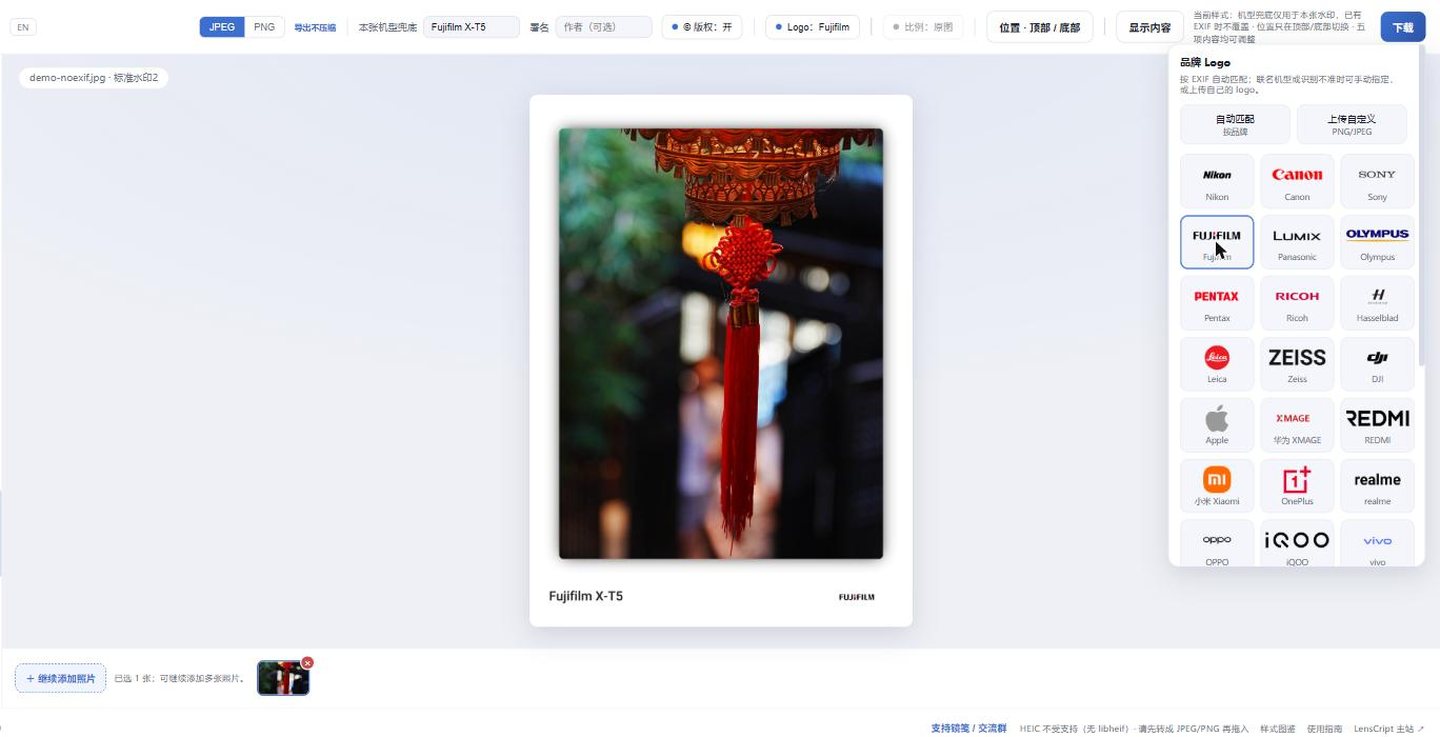
A file with its EXIF wiped, after typing a body and picking the Fujifilm mark by hand. Pick JPEG or PNG in the top bar and hit Download. The export is re-rendered at full resolution, JPEG at quality 100 with 4:4:4, PNG lossless. Capture settings survive; GPS is always removed.
3. Four brands side by side


The four strips below work differently: one photograph gets each brand’s model code in turn and is exported from the live site. Bodies, lenses and settings are written-in demo data, not shots from four cameras.

ILCE-7CM2:
ILCE for interchangeable-lens E-mount, M2 for Mark II. The α is
the Greek letter (U+03B1), with no space before the number and one before the Roman
numeral.
X-T5, so the
Fujifilm prefix has to be added. Spacing varies by series: X-T5 hyphenated, X100VI closed
up, GFX100 II spaced. None of those are typos.

Two more Nikon details people get wrong. The model name is never red: Nikon’s brand colours are yellow and black, the red on the body is a grip inlay, and the "Nikon red italics" seen online is a myth. And November 2024 is a dividing line: before the Z6III it was "Z 6" and "Z 7II"; from the Z6III on the spaces are gone, in the raw EXIF too.
The mark is matched from EXIF. If it gets it wrong, pick one under Logo or upload your own PNG.
Open Mark in the browser4. Where it goes wrong
| Symptom | Cause | Fix |
|---|---|---|
| No body name in the strip, only settings | The file has no EXIF Model, typical of screenshots and chat-app copies | Find the original. Failing that, type a body into the per-photo fallback and pick the brand by hand as in step two |
| No brand mark at all | The brand is not among the 29 matched automatically, or Make / Model is written oddly; with no match, no logo is drawn | Pick the brand by hand in the logo panel, or upload your own PNG |
| Expecting a co-branded mark (Huawei × Leica and friends) to appear on its own | Partnerships end, so co-branded marks are manual only and automatic matching sticks to the current facts | Choose the co-branded mark in the brand logo panel |
| The position control does nothing on a particular template | That template has a fixed position, and the interface says so | Switch to a template that supports top / bottom placement |
5. Next
6. FAQ
Why is my Fujifilm film simulation not in the strip?
Film simulation is not a standard EXIF field. Aperture, shutter and ISO are standardised, so any tool can read them; film simulation sits in the MakerNotes, a private block whose format differs from maker to maker.
The Fields switches cover body, lens, exposure settings, date / signature and logo. Film simulation is not one of them, so if you want it on the picture, type it into the signature field.
Adapted or manual glass leaves the lens line empty — what now?
A manual lens has no electrical contacts, so the body has no idea what is mounted and LensModel is empty in the file. Nothing was missed on read. Many adapters do not pass lens data through either.
Two options: switch the lens field off, which often makes a cleaner strip anyway, or type the lens name into the signature field.
Why does my body show up as a raw code?
That model is not in the built-in lookup table yet. With no match, the raw code is kept rather than left blank, and no name is guessed.
The per-photo body fallback will not help: it only applies when a file has no model, and a file with its own EXIF model ignores it. Instead, switch the body field off under Fields and type the correct name into the signature field.