How to add camera settings to a photo
Some phone camera apps stamp a line under the picture with the aperture, shutter speed, ISO, focal length and camera model. Doing the same for camera files or older shots raises three questions: where the numbers come from, how to add them, and why some photos give you nothing.
Hands-on version: Online camera settings watermark generator — the three-step flow with interface screenshots, a before/after pair and the failure cases people actually hit.
1. Where the numbers come from: EXIF
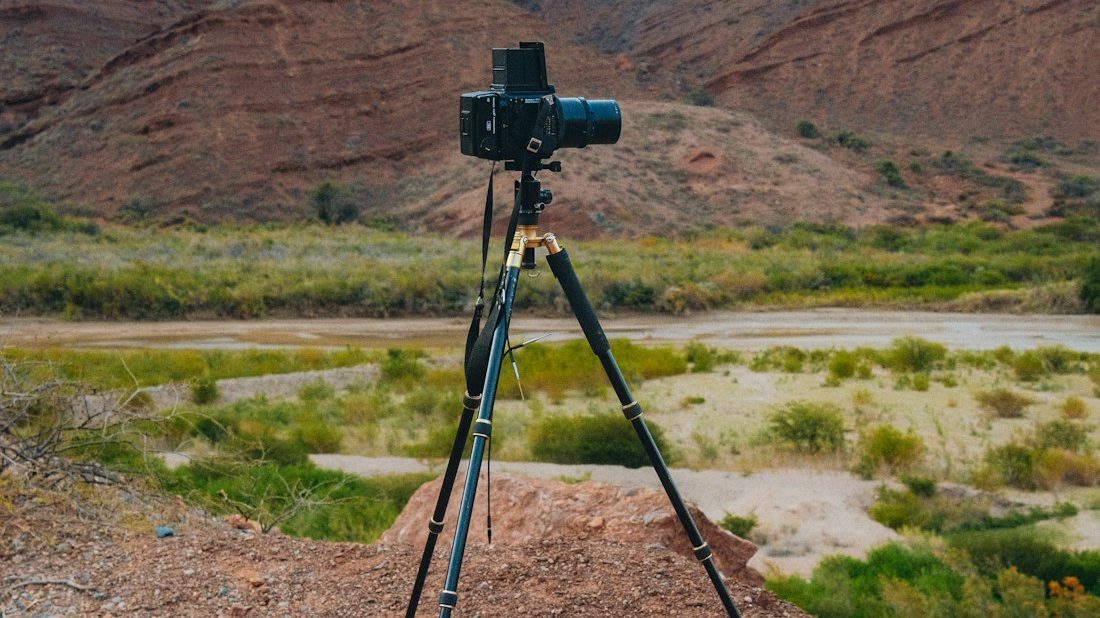
Every camera and phone writes a block of metadata called EXIF next to the pixels. It records what happened during the exposure:

| Field | Typical value | Notes |
|---|---|---|
| Make / Model | SONY ILCE-7M4 | Manufacturer and body |
| LensModel | FE 35mm F1.8 | Often missing with adapted glass |
| FNumber | f/1.8 | Aperture |
| ExposureTime | 1/250s | Shutter speed |
| ISOSpeedRatings | ISO 400 | Sensitivity |
| FocalLength | 35mm | Actual focal length; the 35mm equivalent has its own field |
| DateTimeOriginal | 2026:08:31 18:24:07 | When the shutter fired |
A settings watermark reads that block and draws it onto the picture. A file that reads nothing has lost the block somewhere along the way.
2. Why they vanish when you send a photo
Messaging apps and some social clients re-encode images on send, and the new file keeps almost no metadata.
Two ways to keep them:
- Send the original file, if the app offers it.
- Burn them in first. A watermark is pixels, and recompression can't strip pixels.
Mark adds the settings strip right in your browser. Free, no account, nothing uploaded.
Open Mark — try one for free3. The three-minute workflow
The example uses Mark: a web app, no account, no upload. Everything runs in your own browser.

Step 1: start from a file that still has EXIF
Straight off the card, or the original in your camera roll; not a copy saved out of a chat. JPEGs from a raw converter normally keep full EXIF. The web app can't read HEIC, so convert iPhone shots to JPEG first.
Step 2: drag it in
Open mark.lenscript.cn and drop the photo in. Model, lens, aperture, shutter speed, ISO, focal length and date are read from EXIF.
Step 3: pick a template and download
Pick a template on the left, then switch off the lines you don't need under Show in the top bar. Model plus one line of settings is often enough. Hit Download; JPEG and PNG both export at full resolution.
4. Making it look good
Settings watermarks usually go wrong in one of four ways:
- The border is too wide. Keep it to 6–10% of the short edge; past 15% it competes with the picture.
- The type is too big. It's a footnote, meant to be read up close.
- Everything is switched on. Model, lens, settings, date, signature and logo run the full width of the frame. Two or three lines will do.
- The border fights the image. A wide white frame around a dark photo is harsh; pick a grey or dark-framed template.
Quick test: shrink the result to phone size. If you see the watermark before the photo, it's too much.
5. When nothing can be read
- It's a copy from a messaging app. That's the usual culprit.
- Your editor wiped it. Lightroom, Capture One and Darktable keep EXIF by default; some phone editors, watermark removers and online compressors don't. Compare the original and the edit. If the settings survived in XMP, Mark reads them from there.
- It's a screenshot. Screenshots are new pixels; there was never an exposure.
- It's an adapted lens. Manual glass has no contacts, so the body doesn't know what's mounted and often records the maximum aperture. Mark can't take a typed-in lens or aperture; switch the wrong line off under Show.
With neither EXIF nor XMP, the settings are gone. You can only type in the camera model, in the per-photo model fallback field: it applies when the file has no model, to the current photo only, and is never written back to the file.
6. FAQ
Do phone photos carry camera settings?
Yes: aperture, shutter speed, ISO, equivalent focal length and model. Some multi-camera phones record the main camera's focal length rather than the lens you used.
Is it free? Is there a limit?
Free, no cap, no account. It all runs in your browser, so there's no server cost per image.
Does it work on a phone browser?
Yes, in iOS Safari and Android Chrome, and there's an Android app. The web app can't open HEIC, so set the iPhone to Settings → Camera → Formats → Most Compatible, or export JPEGs first.
Can I batch a whole shoot?
You can drop in several and use one template for all, but for now each downloads separately; zip download is in the works. For dozens at once, use folder batch processing in the desktop, Android or command-line version.
Does exporting cost me quality?
Nothing is downscaled. Exports are re-rendered at full resolution: JPEG at a fixed quality of 100 with no chroma subsampling, PNG lossless across the photo. There's no quality setting to change.