Adding an EXIF settings watermark to iPhone photos
Your iPhone photos carry full capture data, yet drop one into a browser watermark tool and you will most likely be told the file is unsupported.
The blocker is HEIC, so start with a JPEG that still has its EXIF; after that the three steps are routine.
Open Mark, try a photo freeFree, no account, nothing uploaded.
1. What this covers
Get past HEIC, run the three steps on the phone, and learn which photos will never give up their settings.
What EXIF is and how it gets lost is in how camera settings watermarks work. Files that lost their data in an editor are covered in EXIF gone after editing, and picking a look in choosing a watermark style.
The short version: the browser build does not support HEIC. There is no libheif in the browser, as the footer says. The desktop build reads HEIC directly.
2. Three steps
- Step one: turn HEIC into JPEG

The drop-area subtitle and the footer line. Those two lines are why this step exists. Pick the route that fits:
Your situation What to do EXIF intact? You want future shots to just work Settings → Camera → Formats → "Most Compatible" Yes. Everything you shoot from then on is JPEG Older photos already saved as HEIC Convert through the system’s own export or share options Yes. The system conversion keeps the capture data Saved from a chat app or social platform Nothing to convert; go back for the original No. Default compression stripped it Watch the chat-app trap: "send original" and a plain send are two different things. "Original" copies the bytes, EXIF included; the default resizes, re-encodes and strips.
- Step two: drop it into Mark and pick a template
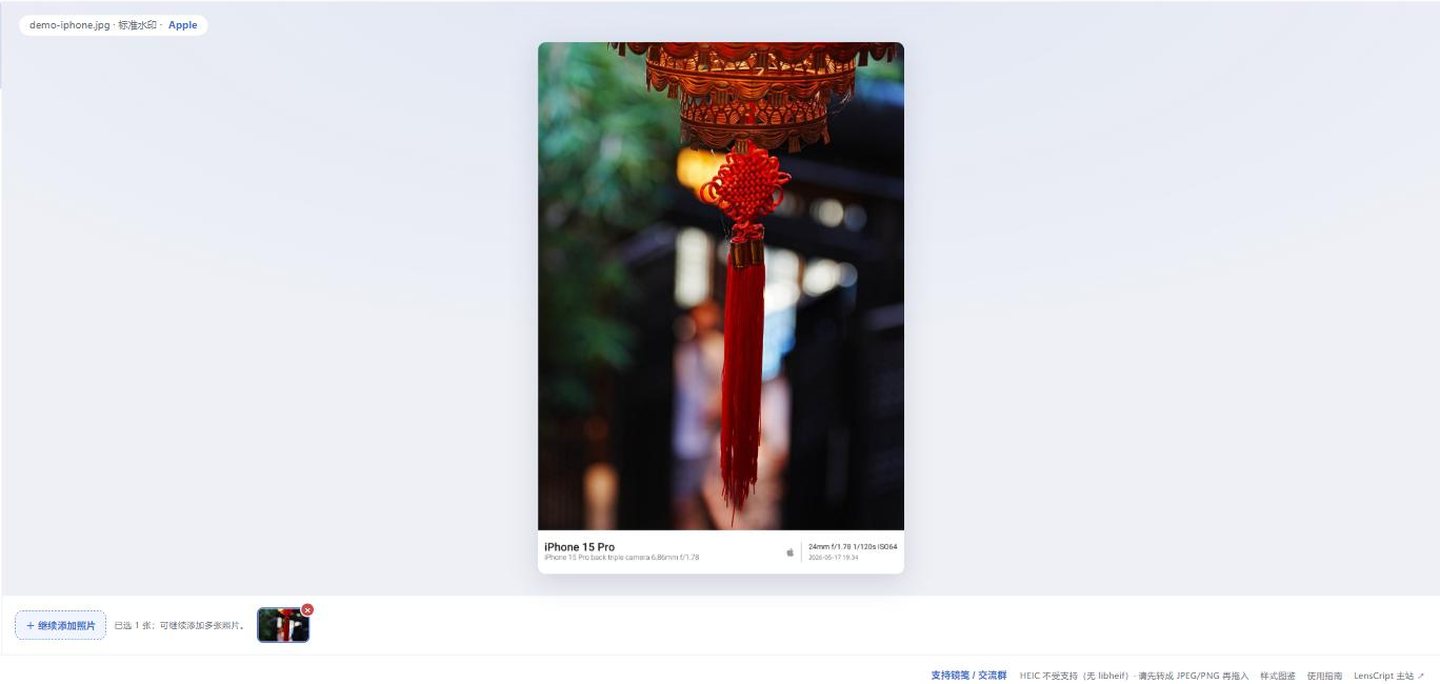
An iPhone file as Mark reads it: body, full lens name, Apple mark, then the 35mm-equivalent focal length with aperture, shutter and ISO. Open mark.lenscript.cn in the phone’s browser and tap the dashed box to open your library. Nothing is uploaded.
Look at the right-hand line: 24mm, not the 6.86mm in the lens line. The strip prefers the 35mm equivalent. This demo file uses the pre-iOS 17.4 figure of 6.86mm; the sample in the next section uses the later 6.765mm, and both are 24mm equivalent. Apple, Xiaomi, Huawei XMAGE, vivo, OPPO, Samsung, Google and other phone brands are among the 29 matched automatically. Co-branded marks (Xiaomi × Leica, Huawei × Leica, vivo × Zeiss, OnePlus × Hasselblad, OPPO × Hasselblad) are deliberately left out of automatic matching; pick them in the brand logo panel.
- Step three: download and save it back

The top bar from left to right, Download at the far end. Choose JPEG for posting. The export is re-rendered at full resolution, quality fixed at 100 with 4:4:4, and your capture settings stay in the file. GPS is always removed; that is hard-coded and there is no switch. Then save the download back to your library.
3. Before and after



If that lens line crowds the strip, switch the lens field off under Fields. The other fields stay put.
Drop the JPEG in. If it gets skipped, the file is almost certainly still HEIC.
Open Mark in the browser4. Where it goes wrong
| Symptom | Cause | Fix |
|---|---|---|
| Nothing happens after picking the photo, or it is reported as unsupported | The file is still HEIC, and there is no libheif in the browser | Convert to JPEG as in step one. With a big HEIC backlog, use the desktop build, which reads HEIC directly |
| The strip is blank: no body, no settings | Screenshots never had capture data, and anything saved out of a chat app or social platform lost its metadata to default compression | Go back to the library for the original; nothing else gets the real numbers back. For a presentable caption, type a body into the per-photo fallback and pick a brand by hand. There is no fallback for aperture, shutter or ISO |
| The typed body name disappears on the next photo | By design: it applies per photo, is not saved and is never written into the file | Type it per photo, up to 40 characters. A file with its own EXIF model ignores the typed value |
| There is no "strip EXIF" switch anywhere | There is no such switch: GPS is always removed, capture settings always kept | To remove more, use exiftool or your system’s own tools. See what is hidden in a photo |
5. Next
6. FAQ
Why does the strip say 24mm when my iPhone lens is 6.86mm?
Both are right, and the strip shows the equivalent when it has one. 6.86mm is the main camera’s actual focal length (EXIF FocalLength); 24mm is what that works out to on full frame (FocalLengthIn35mmFormat).
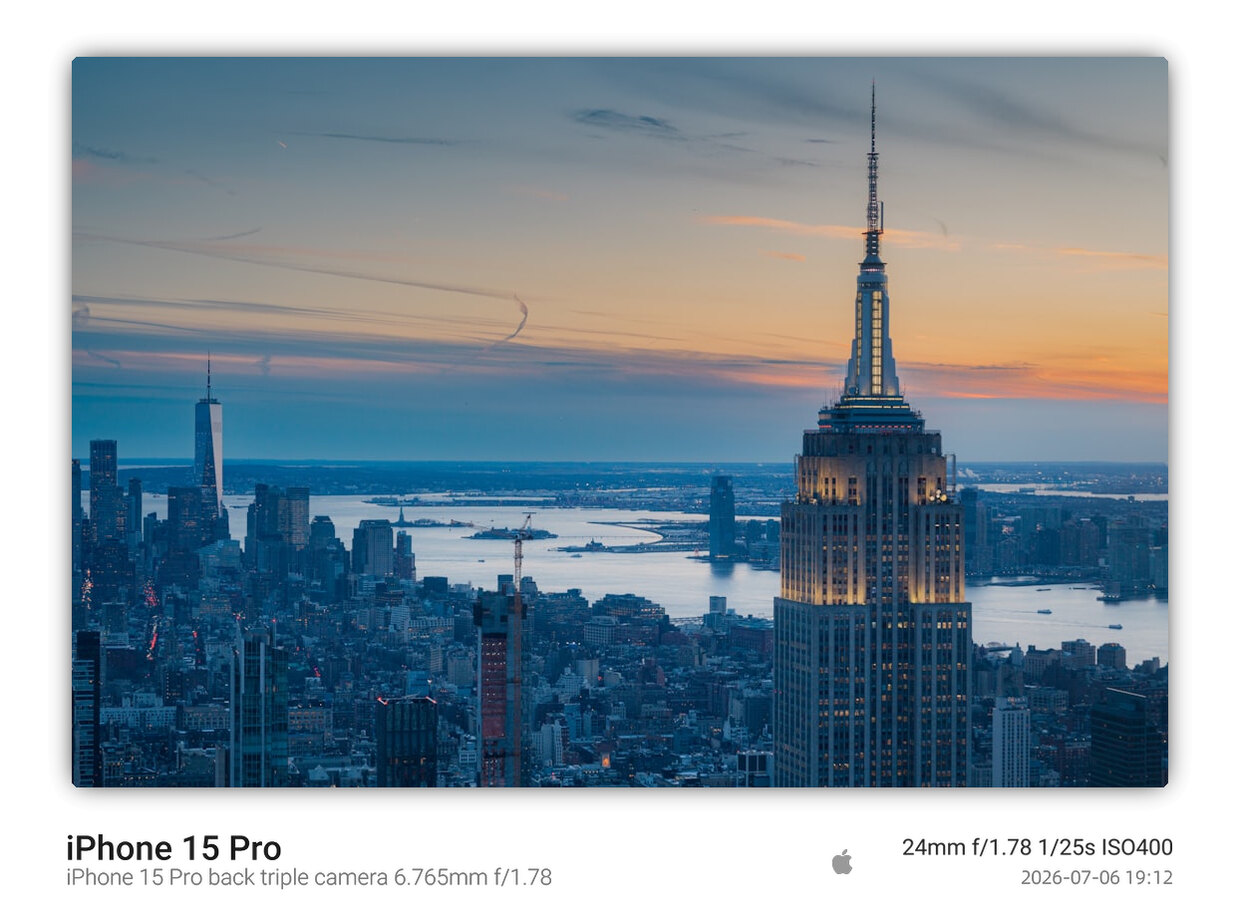
The physical figure varies by model and iOS version: the iPhone 14 Pro writes 6.86mm, the iPhone 15 Pro wrote 6.86mm before iOS 17.4 and 6.765mm from iOS 17.4 on, and the equivalent is 24mm throughout. That is why the two demo files on this page show 6.86mm and 6.765mm; neither is a typo.
Say 24mm and any photographer knows how wide that is. With no equivalent in the file, the physical focal length is shown. More in choosing a focal length.
Can a Live Photo be watermarked?
Yes, the still frame. A Live Photo is a still plus a short clip; export or share it as a regular photo and you get an ordinary JPEG that works like any other.
The watermarked result is a still image, and the clip stays behind in the original. To keep both, leave the Live Photo alone and share a watermarked copy of the still.
Better on the phone or on a computer?
Same Rust engine, same output, so use whichever is handy. The phone already has your photos; a computer gives you a bigger screen for browsing templates.
One limit: zip download in the browser is still being finished, so for now it saves one file per click. For dozens at once, use folder batch mode in the desktop, Android or command-line build.