Checking EXIF and GPS before you share a photo
The photo you're about to share may still carry, outside the frame, the latitude and longitude where you stood and the time down to the second.
You can only remove what you can see, so these three steps find the location, drop it and keep the settings, with exiftool commands and the options your OS already has.
Open Mark, try a photo freeFree, no account, nothing uploaded.
1. What this page covers
Checking and stripping, nothing else. Which fields EXIF holds, how location gets in and which platforms keep it are covered in what is hidden inside a photo; here we go straight to the commands.
Mark won't help much here. It doesn't parse GPS, has no EXIF panel and no "clear metadata" switch; it just drops the GPS and embedded thumbnail on every export, and that can't be turned off. For looking and stripping, use exiftool or your OS.
2. Three steps: look, decide, strip
- Step 1: Look for coordinates
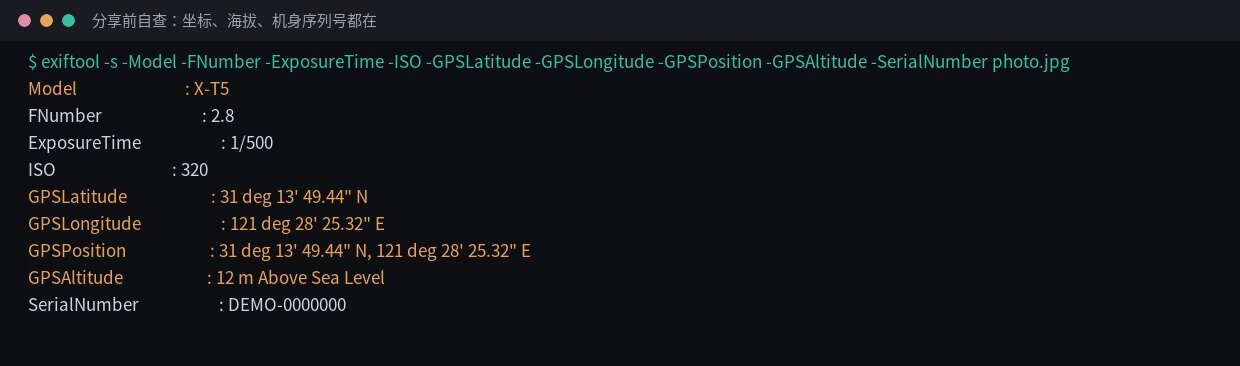
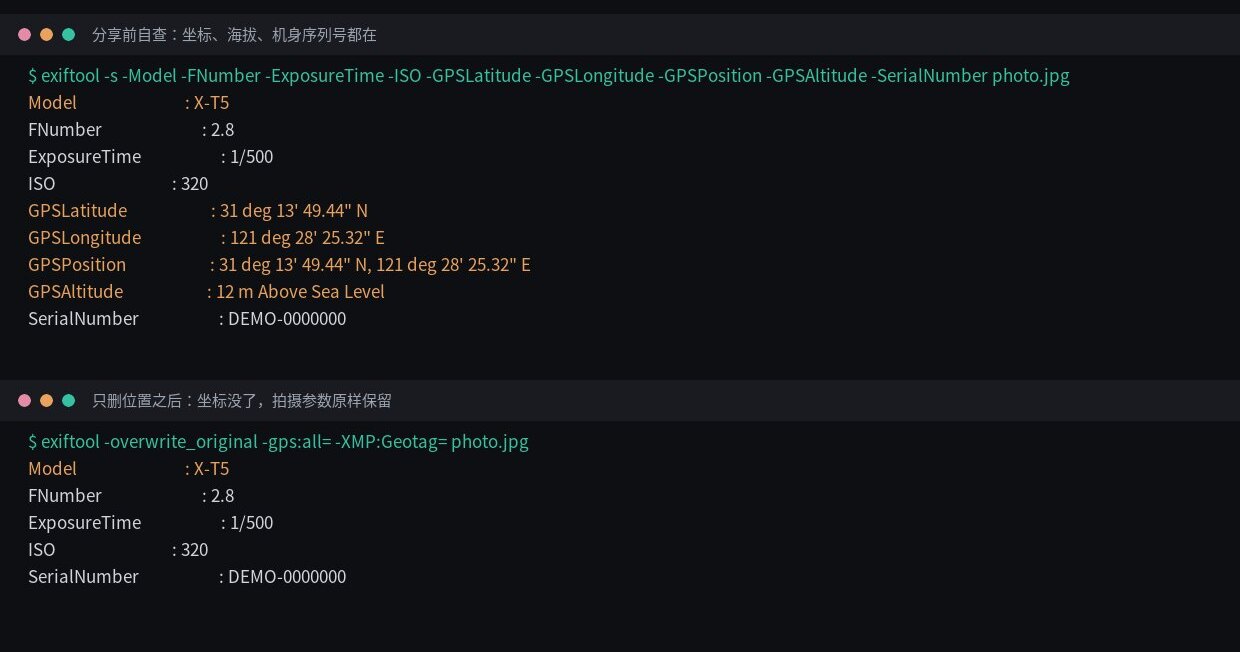
exiftool command-line output before sharing, also pulling body, settings and serial for comparison. EXIF is demo data. Run:
exiftool -GPSPosition -GPSAltitude -GPSDateTime photo.jpgNo output means no location data, and you're done. To list every photo with coordinates in a folder:
exiftool -r -if '$GPSLatitude' -p '$FileName $GPSPosition' photo-folder/No terminal? On a Mac, open the photo in the built-in Preview app and check Tools → Show Inspector for GPS.
- Step 2: Decide what to drop
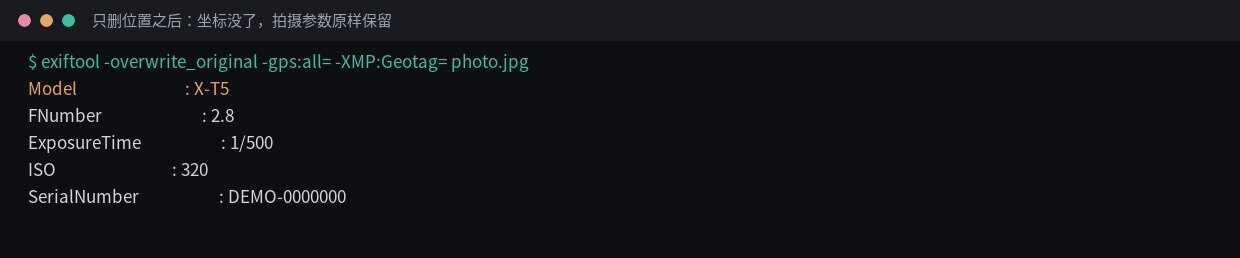
Command-line output after dropping only the location: coordinates gone, settings kept, serial number still there. EXIF is demo data. The sensitive fields are the GPS coordinates, the time to the second and the body serial number. Aperture, shutter, ISO and focal length are harmless; they're what a settings watermark prints. Most people want the location gone and the settings kept. Note that the location-only command leaves the serial alone; if that bothers you, use the full wipe in step 3.
- Step 3: Strip it and check again
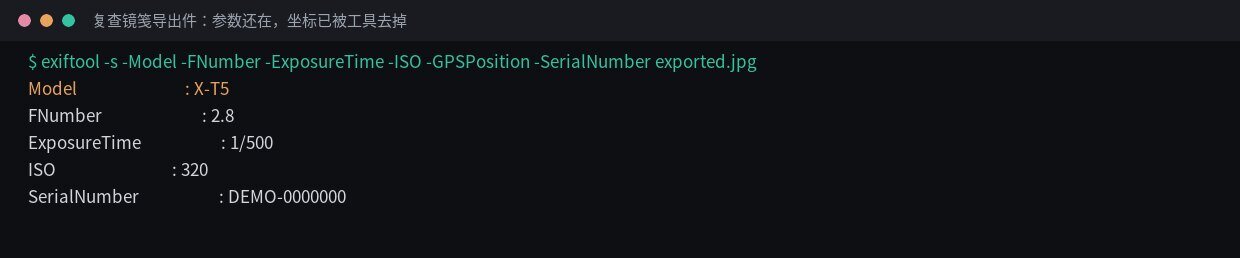
exiftool output checking a file exported from Mark: settings intact, coordinates removed. EXIF is demo data. Back up first.
-overwrite_originalrewrites the file in place, with no undo. To drop only the location and keep the settings:exiftool -overwrite_original -gps:all= -XMP:Geotag= photo.jpgTo drop everything, settings included:
exiftool -overwrite_original -all= photo.jpgThen re-run the step-1 command rather than trusting a photo viewer.
Without a terminal, use what the OS already has: in Windows Explorer, right-click → Properties → Details → Remove Properties and Personal Information; in macOS Preview, untick the keep-metadata option on export; in iOS Photos, tap Options in the share sheet and turn off Location.
If you're watermarking anyway, Mark's export carries no coordinates (that's the check above). The original is left alone and keeps its GPS.
3. Location only vs. everything

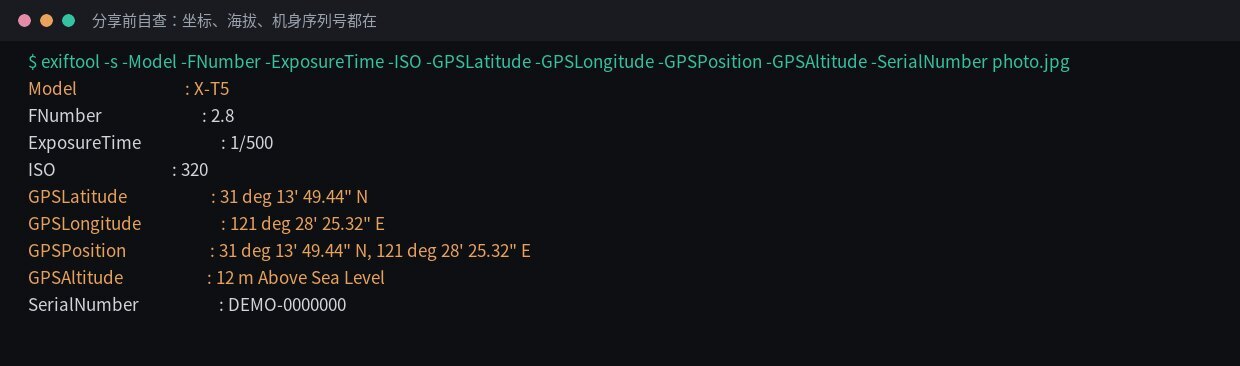
exiftool before sharing: latitude, longitude, altitude and serial number all there.
Real command-line output, not an app screen; EXIF is demo data.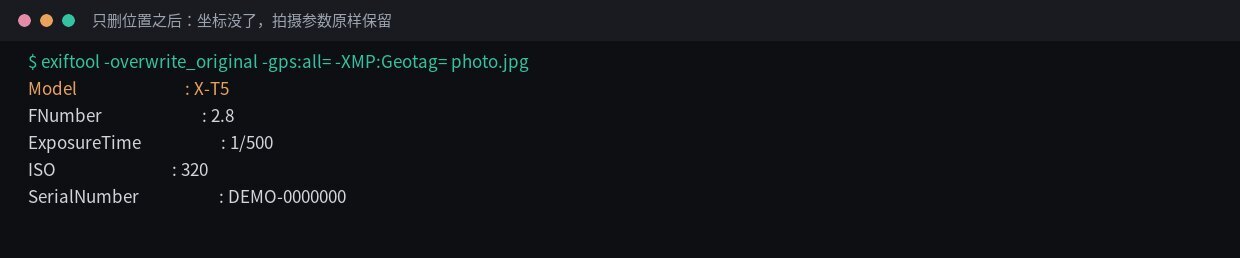
-gps:all= alone: no coordinate fields left, body and exposure settings untouched. EXIF is demo data.| File | Represents | Bytes | Pixels | Body | Aperture | Shutter | ISO | Focal length | GPS |
|---|---|---|---|---|---|---|---|---|---|
| Original | Straight off the camera/phone | 201507 | 1240×827 | X-T5 | 2.8 | 1/500 | 320 | 23mm | Yes |
| GPS removed only (-gps:all=) | Settings kept, coordinates dropped | 201289 | 1240×827 | X-T5 | 2.8 | 1/500 | 320 | 23mm | No |
| Everything removed (-all=) | Settings and location wiped together | 200697 | 1240×827 | — | — | — | — | — | No |
Dropping the location and dropping everything are different jobs: one keeps the settings and loses only the coordinates, the other clears both. Most people want the first. Measured with exiftool 12.76; what gets written varies by camera and file, so check your own.
Mark isn't a privacy tool, but every export it makes drops the GPS and the embedded thumbnail, and you can't switch that off.
Open Mark in the browser4. Where it goes wrong
| Symptom | Cause | Fix |
|---|---|---|
| You sent the original through a chat app and the coordinates went with it | "Original" skips the compressed channel that would have stripped metadata; the file goes byte for byte, GPS included | Run the step-1 check first; drop the location before sending an original |
| The location is gone but the serial number is still there | -gps:all= removes GPS only and leaves the serial alone |
If you mind, use -all= for a full wipe, after backing up |
| You can't find a "clear EXIF" switch in Mark | There isn't one: GPS is always dropped on export and the settings are always kept | To remove the settings, use exiftool or an OS feature |
| You exported from Mark, but the original still has coordinates | Mark drops GPS only in the new file it exports and never touches the original | Share the export; to share the original, strip the location with exiftool or your OS first |
5. Next
6. FAQ
Can Mark view or remove GPS data from my photos?
No. Mark doesn't parse GPS at all and has no EXIF panel or clear-metadata switch. The one relevant thing it does is drop the GPS and embedded thumbnail on every export, always, with no way to turn it off. For viewing and stripping, use exiftool or an OS feature.
Does removing location data affect image quality?
No. Metadata and pixels are stored separately, so removing EXIF fields doesn't touch a pixel. -gps:all= drops only the coordinates; -all= clears the settings too. Pick whichever you need.
Could an exiftool command damage the original file?
With -overwrite_original it rewrites the file in place, so back up first. Without that flag, exiftool leaves a copy of the original with an _original suffix in the same folder.