Adding camera watermarks to a whole set
Watermark twenty frames one at a time and by frame eight the settings no longer match frame one.
Mark has you set the style once and export photo by photo: zip download in the browser is still being finished, so for now it saves one file per click, and the desktop, Android and command-line builds can batch a whole folder when you have dozens.
Open Mark, try a photo freeFree, no account, nothing uploaded.
1. What this page covers
This is the hands-on part: what carries over once a set is loaded, how exporting works, and which of three routes fits how many photos. Culling, naming and keeping a set consistent are workflow questions, covered in the workflow for a set of photos. For picking the look itself, see choosing a watermark style.
The catch first. The browser version takes a whole set at once and lets you flip through it in the filmstrip, but for now one click on Download saves only the photo on screen. The app says so itself: browsers can't reliably save many files at once, so click each thumbnail to download it. Zip download is still being finished. Until it ships, anything past a dozen or so is a job for the folder batch in the desktop, Android or command-line build.
| Route | How you export | Good for | Notes |
|---|---|---|---|
Browser, mark.lenscript.cn | Flip through the filmstrip, download each | A few up to a dozen or so | Nothing to install, nothing uploaded. Past a dozen it's just a lot of clicking |
| Desktop / Android | Point it at a folder and run the lot | Dozens to hundreds | The desktop build can optionally decode HEIC |
| Command line | The batch subcommand works through a whole folder | Any number, and scriptable | --pad-ratio for ratio fitting, --pad-fill for the fill |
All three run the same Rust rendering engine. Same style, same settings, same picture.
2. Three steps
- Step one: drop the whole set in at once
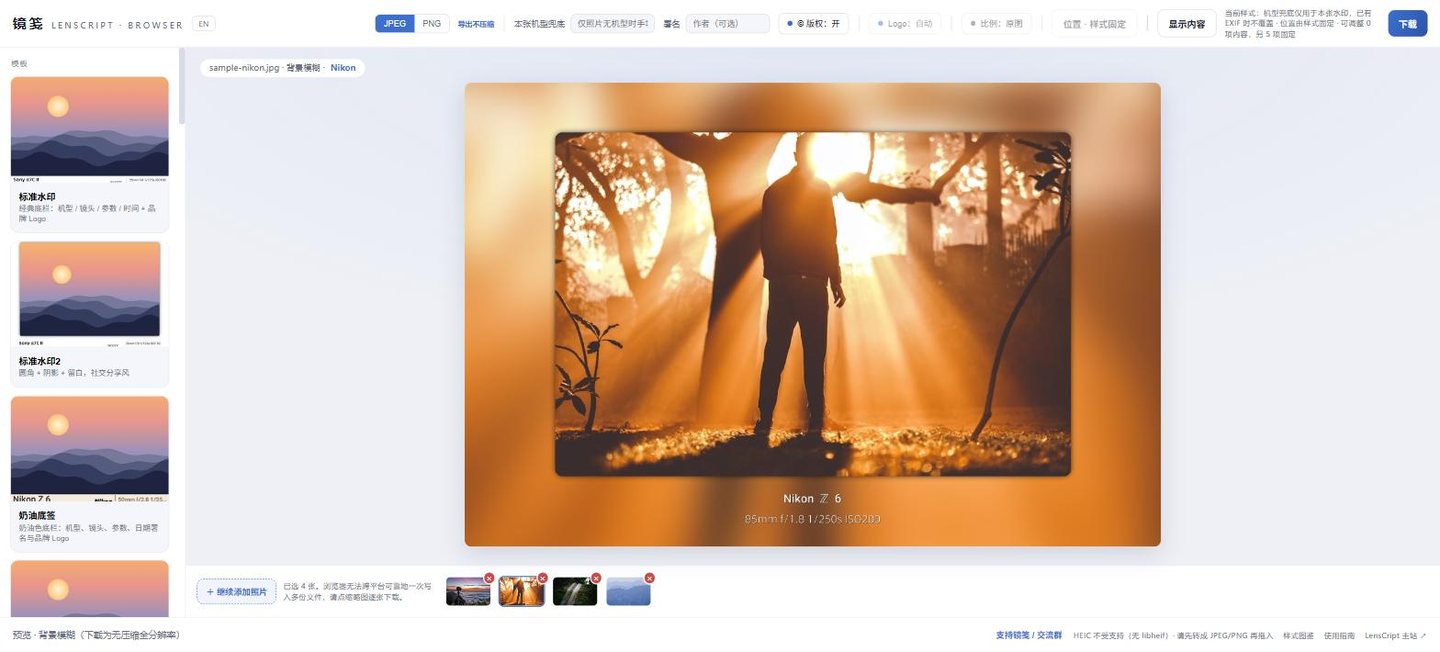
The filmstrip after dropping in four photos. The note beside it marks where the browser version stops for now: it handles them together, but zip download is still being finished. Open mark.lenscript.cn and drag the whole set onto the dashed box, the one that says "Drop photos to start (multiple OK)", or click it and multi-select. A filmstrip and an "+ Add more photos" button show up along the bottom, so you can build the set in several goes.
JPEG, PNG and camera RAW all work. HEIC isn't supported: any HEIC files in the set get skipped with a notice. Convert them to JPEG first, or use the desktop build, which has optional HEIC decoding.
- Step two: set it up once
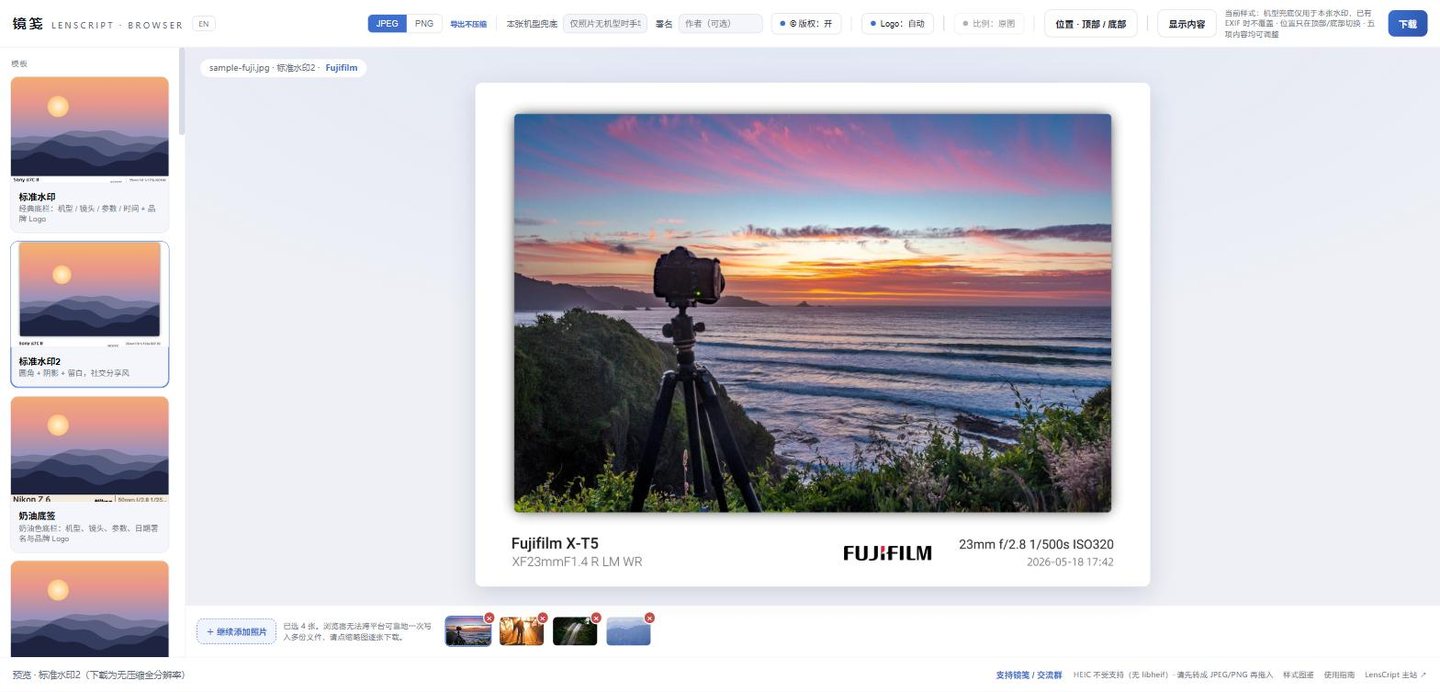
Pick "Standard 2" once and the whole set uses it. The body, lens, settings, date and brand logo under each frame come from that photo's own EXIF. Choose one of the 50 styles in the Styles panel on the left, then set format, Credit, © Mark, Logo, Ratio, Position and Fields in the top bar. Flip to another photo in the filmstrip and the style and settings come along, so there's nothing to redo. Want one frame in a different style? Switch to it and change it there.
Body, lens, aperture, shutter, ISO and date come from each file's own EXIF, so a set shot on three or four bodies is fine. The Model fallback field is kept per photo: it gives a display name to a file with no camera model in its EXIF, applies to that photo only and is never written back to the file. Lens, aperture, ISO and date can't be typed in.
- Step three: click a thumbnail, download, repeat
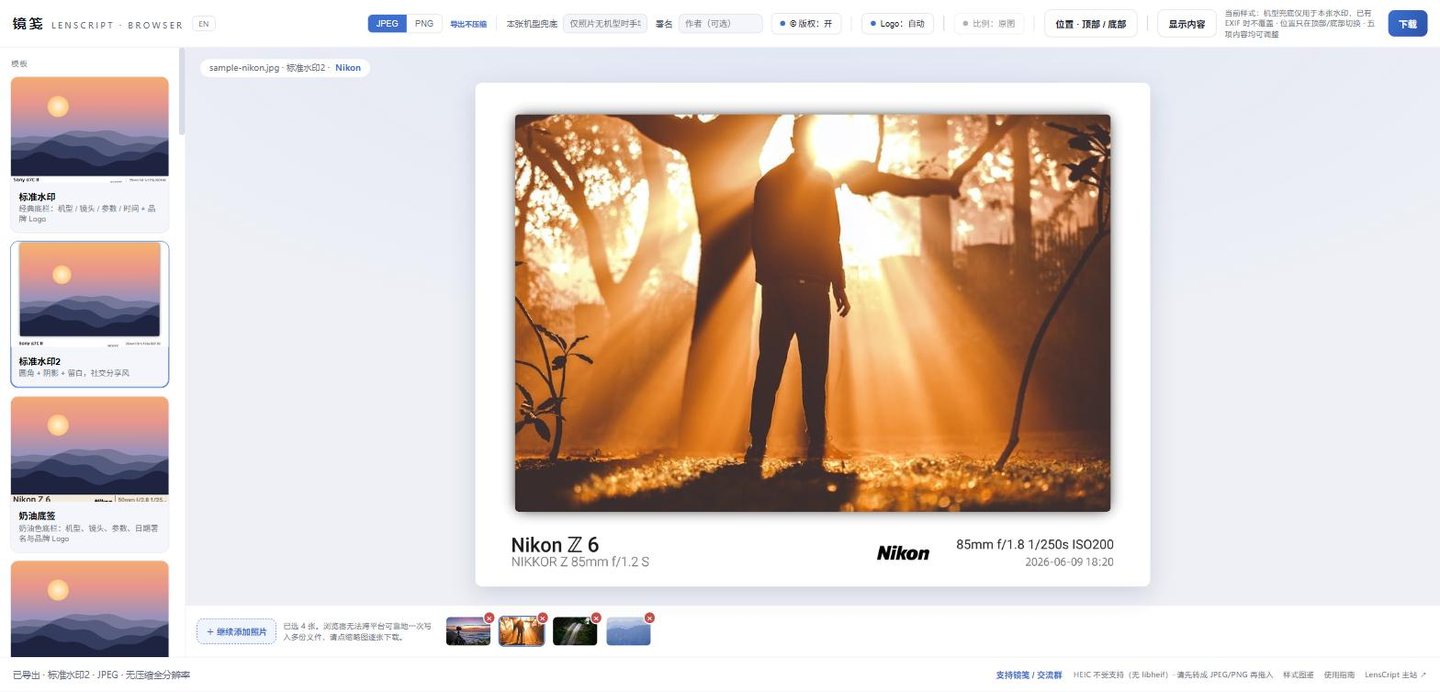
Switch to the second photo and the style and settings follow. After Download, the status bar confirms the export: style, format, full resolution. Click a thumbnail, hit Download at the top right, move on to the next. Files come out as
<original name>_<style name>.jpg, so finished frames never get mixed up with the originals. Each export is re-rendered from the original at full resolution, JPEG at a fixed quality of 100 with 4:4:4 chroma, rather than saved from the preview.Nothing leaves your machine. Rendering runs through a single serial queue, one photo after another, so a long run of big files keeps getting slower. That's your cue to move to the desktop or command-line build.
3. Four bodies, one style
Four frames from four different bodies, one style, one run.


The Sony's EXIF says ILCE-7CM2; the print says Sony α7C II. The engine tidies up body
names on its own. Logos work the same way: a recognised body gets its logo, an unknown one gets
no logo at all rather than a placeholder.
Measured timings
These come from the command-line build: Mark v0.2.31 on an i7-12700H (12 cores, WSL2), style fixed to "Standard 2", measured on 2026-09-13. The browser runs the same engine but adds wasm loading and a serial queue on top, so read this as a sense of scale, not as browser timings.
| Job | Settings | Total | Per photo |
|---|---|---|---|
| 20 small files (900×600 – 1240×827) | 4:5 + blurred background | 11.7 s | about 0.6 s |
| 3 × 24MP (6000×4000) | 4:5 + blurred background | 291.4 s | about 97 s |
| 1 × 24MP | no ratio fitting | 3.5 s | 3.5 s |
| 1 × 24MP | 4:5 + black fill | 3.9 s | 3.9 s |
| 1 × 24MP | 4:5 + blurred background | 106.4 s | 106.4 s |
Other hardware and other files will give other absolute numbers. What carries over is the ratio between rows.
Look at the last three rows. On a single 24MP frame, the blurred fill takes about 27 times as long as black: 106.4 s against 3.9 s. The blur runs over the whole enlarged canvas, so it slows down as the canvas grows, while a black fill costs next to nothing. At roughly 97 s a frame, forty 24MP files with the blur take over an hour. Two fixes: switch the batch to black, or shrink the originals to a 2000–3000px long edge first.
Drop the whole set in, pick the style once, then click through the thumbnails and save each one.
Open Mark in the browser4. Where it goes wrong
| What you see | Why | What to do |
|---|---|---|
| You load 30 photos, click Download, get one file and can't find a zip button | Zip download is still being finished; for now one click exports the selected photo only | Click through the filmstrip and save each one; for dozens, use the desktop, Android or command-line folder batch |
| You type a body name for the first photo and it's blank again on the second | The Model fallback is stored per photo on purpose and never written back to the file | Expected. Fill it in for each photo |
| A few dozen big files get slower and slower and the page seems stuck | Rendering is single-threaded and serial, and every export re-reads the original at full resolution; the blurred fill is the slowest part on big files | Work in smaller batches, switch the fill to black, or move to the desktop or command-line build |
| HEIC files in the set were skipped | The browser build has no libheif, so it can't decode HEIC | Convert them to JPEG first, or use the desktop build with optional HEIC decoding |
| You want to change the aperture or date across a set and can't find where | Lens, aperture, ISO and date are only ever read from EXIF; they can't be typed in | To show fewer fields, switch rows off under Fields in the top bar. To change the values, edit the file's EXIF with a tool such as exiftool first, and back the files up before you do |
5. Next
6. FAQ
Can the browser version zip 30 photos into one download?
Not yet. Zip download is still being finished. You can load 30 at once, share one set of settings and flip through them in the filmstrip, but for now each click on Download saves only the current photo, because browsers can't reliably save many files in one go. For dozens at a time, use the folder batch in the desktop, Android or command-line build. It's the same engine.
Can each photo in a set use a different style?
In the browser, yes. Exporting is one photo at a time anyway, so switch to the frame, pick another style and download it. The folder batch is built around one set of settings per run; to mix styles, sort the photos into one folder per style and run each.
Does batch exporting lose the EXIF?
No. With a JPEG source, the whole EXIF block is copied into the export with orientation reset to normal, along with the ICC profile and XMP. With PNG or RAW, a minimal EXIF block is written carrying body, lens, aperture, shutter, ISO, focal length and date. The GPS position and the old embedded thumbnail are always removed, and there's no switch for that.